🪟 Windows: Get Ubuntu Ready
Step 1 of the workshop setup. Do it at home, one step at a time.
🍎 🐧 Mac or Linux? You don’t need this page. Go back to step 1 of the slides.
👀 The whole thing in one window
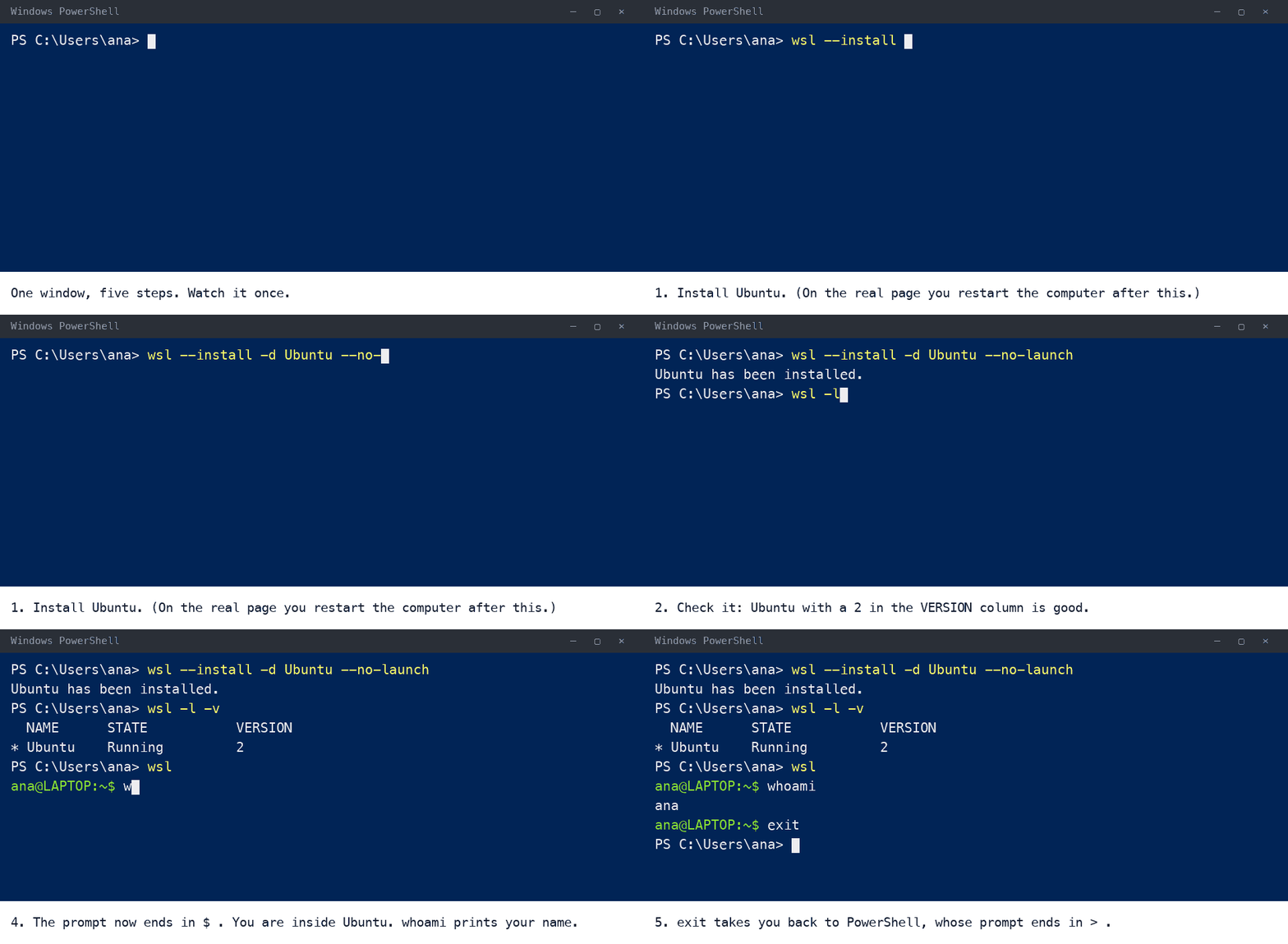
wsl starts Ubuntu, whoami prints your name.A picture of the steps below, in one window. The key moment is the third command: typing wsl in PowerShell starts Ubuntu, and the prompt changes to end in $. Then whoami works. The steps below go slowly, with a restart in the middle. The first time Ubuntu opens, it also asks you to pick a username and password (step 5): the picture skips that.
🏠 Why Ubuntu?
The workshop’s tools are made for Linux. Ubuntu is a version of Linux, and WSL (Windows Subsystem for Linux) is the part of Windows that runs it.
- 🪟 Windows is your house: your browser, your files, the apps you know.
- 🐧 Ubuntu is a room inside it: a window where you type commands. All the workshop’s work happens in this room.
- 🌐 Your Windows browser still opens what you make.
You never need to leave Windows, and nothing on Windows is removed.
Why not just use PowerShell? The slides’ commands, and the way we tested the setup, are all for Linux. Ubuntu is a widely used, well-supported Linux, so what you type matches the slides and there is less to go wrong. Some tools also have Windows installers, but their paths and commands differ, and we cannot help you debug each variant on the day.
Before you start
- ⏱️ About 20 minutes and one restart.
- 🛡️ An administrator account on this computer. On a work laptop, ask IT first; if IT types the password for you, stay signed in as yourself. If you can’t get one, tell the organiser before the day.
- 🪟 Windows 11, or Windows 10 version 2004 or newer. To check: Settings → System → About.
- 🔌 Plugged in, on strong internet: Ubuntu is a big download.
- 📱 Open this page on your phone too, at
project-delphi.github.io/quarto-workshop/windows-setup.html. The restart closes your browser.
How to use the page: do one step, compare your screen with ✅ You should see, then go on. Grey boxes hold commands, with a copy button in the top-right corner. Dashed boxes show what to expect: don’t type those. Something looks different? Go to 🆘 Stuck?.
1️⃣ Open PowerShell as administrator
PowerShell is a Windows window for typing commands. You need it for a few minutes only.
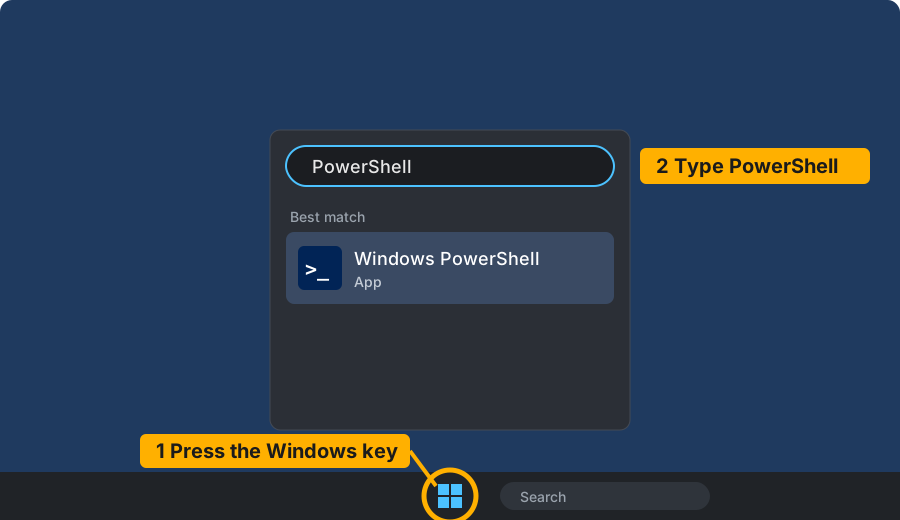
- Press the Windows key (it shows the Windows logo), or click the Windows logo on the taskbar, and type
PowerShell.
- Right-click “Windows PowerShell” and choose Run as administrator.
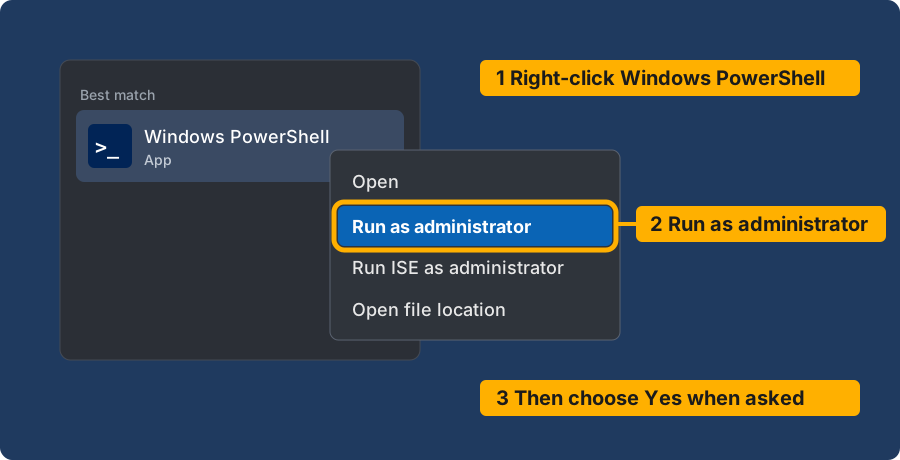
- Choose Yes when Windows asks.
✅ You should see a window whose title starts with “Administrator”. Its last line looks like this:
PS C:\WINDOWS\system32>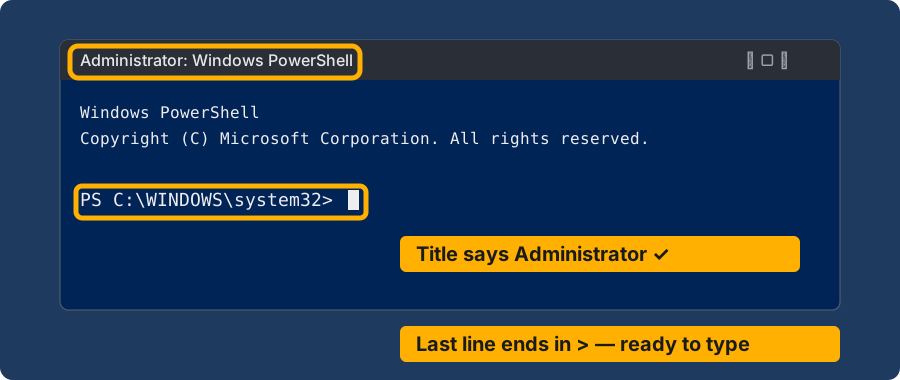
>.2️⃣ Turn on WSL
- Click the copy button on the box below.
- Go to the PowerShell window and press Ctrl+V to paste. (Nothing? Right-click once in the window.)
- Press Enter, then wait.
wsl --install -d Ubuntu --no-launchWatch it once: this is what the window does. It repeats, and it is only a picture.
✅ You should see a message that you must restart, such as “Changes will not be effective until the system is rebooted”. Go to step 3.
No restart message, and it says Ubuntu is installed or “already exists”? Skip to step 5.
3️⃣ Restart the computer
Save your work, then Start → Power → Restart. Come back to this page afterwards (or use your phone).
4️⃣ Download Ubuntu
The first run only prepared Windows. This run gets Ubuntu itself.
- Open a normal PowerShell window, not as administrator: press the Windows key, type
PowerShell, and press Enter. Ubuntu is installed for the account that runs this line, so it must be yours. - Paste the same line and press Enter:
wsl --install -d Ubuntu --no-launchThis is the long wait: the download can take many minutes. Leave the window open, even if the percentage stays still for a while.
✅ You should see that it finished, or “already exists”. Both mean go on. Keep this window open.
You are about to have two windows. Their last line tells you which is which:
| 🟦 PowerShell | 🐧 Ubuntu | |
|---|---|---|
| Its line ends in | > , like PS C:\Users\Ana> |
$ , like ana@LAPTOP:~$ |
| Use it for | steps 1, 2, 4 and 6 only | everything else in the workshop |
5️⃣ Open Ubuntu and pick a username and password
- Press the Windows key, type
Ubuntu, and press Enter. A new window opens. The first start unpacks files: wait. - Username: type one short word in lower case, with no spaces, such as
ana, and press Enter. It does not need to match your Windows name. - Password: type a password you will remember and press Enter, then type it again.
🙈 Nothing appears while you type the password. No dots, no stars. This is normal: keep typing and press Enter. Write the password down. You will need it again in step 8.
✅ You should see a line like this, with your own names:
ana@LAPTOP:~$This line is called the prompt. It means “ready for a command”:
| Part | Means |
|---|---|
ana |
you |
LAPTOP |
this computer |
~ |
you are in your home folder |
$ |
type here |
Try it. In the Ubuntu window (the line ending in $, not PowerShell), type this and press Enter. whoami prints the name of the user you are:
whoami✅ You should see your own username (not ana) on the next line, then the prompt again. Then step 5 is done:
ana6️⃣ Check that Ubuntu is on WSL version 2
Click the PowerShell window (its line ends in >), paste this, and press Enter:
wsl -l -v✅ You should see Ubuntu with a 2 in the VERSION column, something like this:
  NAME      STATE           VERSION
* Ubuntu    Running         2
Does it say 1? Type wsl --set-version Ubuntu 2, press Enter, and wait until it finishes.
📨 Post a screenshot of this in Discord, so the organiser knows you are ready: press Windows key+Shift+S, drag over it, then press Ctrl+V in Discord.
Now type exit and press Enter to close PowerShell. You are done with it, unless the stuck table sends you back.
7️⃣ Practise copy and paste in Ubuntu
The keyboard shortcuts you know may work differently in this window.
| With the mouse | With the keyboard | |
|---|---|---|
| To copy | select the text, then right-click | select the text, then press Ctrl+Shift+C |
| To paste | right-click with nothing selected | press Ctrl+Shift+V |
The keyboard way does nothing in some older windows. The mouse always works.
⚠️ Careful with Ctrl+C. With nothing selected it does not copy: it stops whatever is running. If that happens, run the command again.
Try it. Copy this line, paste it into Ubuntu, and press Enter. echo just prints what you give it.
echo "Paste works"✅ You should see Paste works on the next line.
8️⃣ Install two small tools
Paste this into Ubuntu and press Enter:
sudo apt update && sudo apt install -y curl git| Word | Means |
|---|---|
sudo |
“do this as administrator”. It asks for your Ubuntu password from step 5 (hidden again) |
apt |
Ubuntu’s app installer |
&& |
“and then, if that worked” |
A lot of text scrolls past. That is normal. Wait for the $ to come back, then check:
curl --version && git --version✅ You should see a version number for each one, such as git version 2.43.0. Yours may differ.
9️⃣ Four habits for the workshop
🏠 Stay in your home folder. Keep workshop folders there, not in Documents, Desktop or OneDrive. If the prompt shows /mnt/c, you are in a Windows folder: run cd ~ to go home.
📂 See your files in Windows. This opens the current folder in File Explorer, so you can double-click what you made. The dot means “this folder”. Try it now:
explorer.exe .➕ Open a second tab. Later you will need one, while your coding assistant is busy in the first. Press Ctrl+Shift+D. If nothing happens, your window has no tabs: open Ubuntu again from the Start menu. A second window works just as well.
🔗 Copy sign-in links whole. Ubuntu may not be able to open your browser, so tools print a link. Select all of it, copy it, and paste it into your Windows browser. A link cut in two will fail. Does the website then show a code? Copy it and right-click to paste it back into Ubuntu.
🚫 Don’t install the Windows versions of Quarto, Python or the coding assistant for this workshop. Ubuntu needs its own copies, and the Windows ones can get in the way. The next slides install everything inside Ubuntu.
Tomorrow, or after a restart: press the Windows key, type Ubuntu, and press Enter. Your files are still there.
✅ Done? Back to the slides
Step 1 is done when all of these are true:
🆘 Stuck?
| 👀 You see | 🔧 Do this |
|---|---|
| Install stuck at 0.0% | Close it, then in PowerShell run wsl --install --web-download --no-launch -d Ubuntu |
| No Ubuntu in the Start menu | Do step 4 again in a normal window, not as administrator. This also helps if someone else typed the administrator password. Still none? In PowerShell type wsl ~ |
Error 0x80370102, or “virtualization is not enabled” |
Virtualization is off in your computer’s BIOS. Tell the organiser, with a screenshot |
| A list of options and no install | Your Windows is too old. Run Windows Update, restart, and repeat step 2 |
| “Access denied”, or no Run as administrator | You need an administrator account. Tell the organiser before the day |
| “Already exists” | Ubuntu is already installed. Go to step 5 |
wsl is “not found” |
You are in the Ubuntu window. Use the PowerShell window, whose line ends in > |
| Ubuntu closes or won’t start | Restart the computer and open Ubuntu again |
| Nothing moves, and the window’s title starts with “Select” | A click paused the window, and nothing is broken. Press Esc |
| Download fails on a work network | Try another network, such as a phone hotspot |
The prompt starts with root@ and ends in # |
It skipped the username step. Post it in Discord #help before going on |
sudo says “Sorry, try again” |
Wrong password. Type it again slowly: it stays hidden |
| Forgot your Ubuntu password | In PowerShell run wsl -u root, then passwd ana with your username, then exit |
command not found right after an install |
Open a new tab or window and try again |
Anything else:
- 📋 Copy the command you ran and the full error text.
- 🌐 Paste them into a web chat (Gemini, Claude or ChatGPT) and say “Windows, Ubuntu on WSL”.
- 🔧 Read the suggestion, and try one fix at a time. Never paste a password.
- 📸 Still failing? Post the error and a screenshot in Discord
#help.
If WSL can’t be installed on your computer, you can still take part: tell the organiser before the day and you will pair with a neighbour.
Written from Microsoft’s documentation, checked 2026-11-06: install, why the restart splits the install, first start and password, commands, files, troubleshooting, terminal keys. Exact messages can differ between Windows versions. 🌍 Browser translation works on this page: commands stay in English.